





NASBA Experience Verification

One of NASBA’s goals is to make the CPA credential available to both domestic and international accounting professionals around the world, and we recognize that many applicants for licensure have difficulty finding an actively licensed CPA to sign off on their experience requirement.

The Experience Verification service is our latest effort to address the needs of both domestic and international licensure applicants by providing access to an interview with an actively licensed U.S. CPA, while also conducting a thorough authentication of the applicant’s work experience.

What do you need?

In order to begin the Experience Verification service, applicants must have:

  • Passed the CPA Examination or International Qualification Examination (IQEX)
  • Met the Board’s educational requirements for licensure, and
  • At least 2,000 hours of work experience within the time frame specified by the jurisdiction

Service Availability

NASBA will offer Experience Verification for licensure in the following jurisdictions:

Arkansas
Guam
IQEX
Kentucky
Louisiana
Michigan
Montana
New Hampshire
Oklahoma
Pennsylvania
Virginia
Washington
Washington D.C.

      Individuals who sat for the CPA Exam in jurisdictions other than the jurisdictions listed above, may be eligible to transfer their scores to these jurisdictions and apply/obtain licensure.

      Individuals applying for the IQEX exam who need to use this service must first be approved by NASBA IQEX specialist before applying for this service. Click the IQEX link above for more information.

      Costs/Fees

      Domestic Experience Verification: $600
      International Experience Verification: $800

      The Process

      1. Log in to Your CPA Portal using the account you previously used for CPA Examination services.
      2. Select “Apply Now.”
      3. Choose your jurisdiction.
      4. Select Experience Verification.

      If you are a first-time user, or new to the CPA Portal, please follow the below instructions:
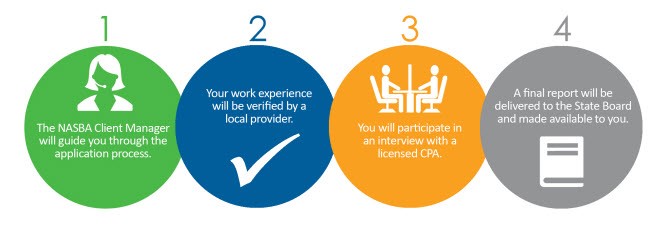
      1. Sign up for an Okta account using the CPA Mobile App or through the web at https://dashboard.nasba.org. Please refrain from using work or school emails when creating your account.
      2. After creating your Okta account, you will receive a verification email which you will use to activate your Okta account.
      3. You will then be asked to “Set up security methods”. If you select “Google Authenticator” please pay attention to the instructions on your mobile device as to where the verification code is being stored. Your device may default to “Passwords” (Apple) or ask to “Open with” (Android). If you choose to save to “Passwords” or select a different application to “Open with” then that is where you will retrieve your six-digit verification code each time you sign in. 
      4. Now you will be able to log into your NASBA Application Dashboard. 
      5. Click the CPA Portal button. You will see two options, “New Candidate” or “Existing Candidate.”  
      6. Choose “Existing Candidate,” you will be prompted to match utilizing your National Candidate ID, Date of Birth, and your Jurisdiction for which you passed the CPA Exam or IQEX Exam. If successful, the system will successfully matched your account.  
      7. You will then receive a “Verify Match” email. Verify the email. 
      8. If applicable, once you reach the home page of your CPA Portal, “Link Existing CPA License.” 
      9. Select “Apply Now.”
      10. Choose your jurisdiction. 
      11. Select Experience Verification. 
      Your CPA Portal Button

      Contact Us

      Email: [email protected]